Reach International Customers: Add a Language to Your Website with AI

Built your website in one language and now you're waiting for customers to find it? Then you're in the right place!
These days, many people look for brands from other countries directly. But what if they land on your website and can't read a word of it? They'd probably close the tab within seconds. 😢
Who knows? Your brand's biggest market might open up in a country you never expected.
Nadoo's 'Multilingual Site' feature lets you add a language to the website you've already built, and AI handles the translation too. There's no need to build a separate multilingual website from scratch.
🌏 Pick a Language and AI Translates It
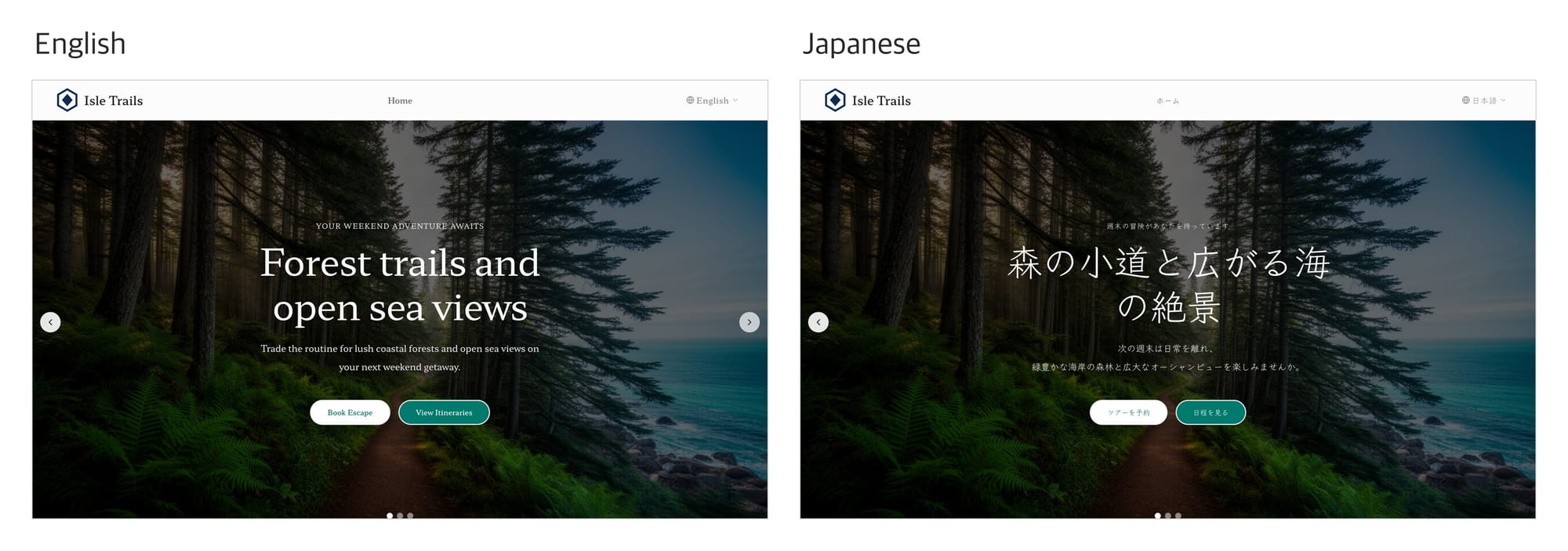
Choose a language from [+ Add Language], and AI translates your current website into that language and creates a version of your site for each language.
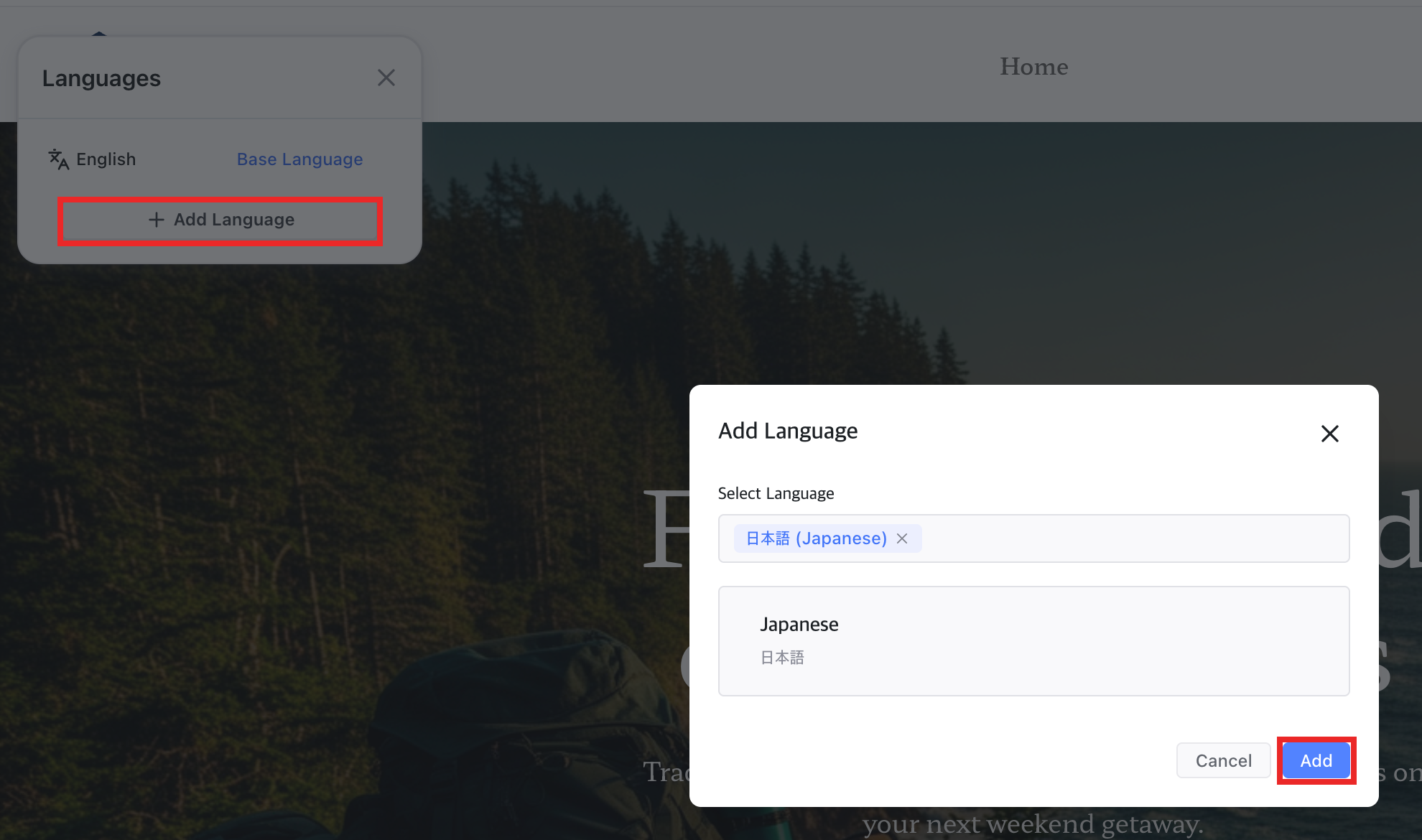
It doesn't just swap words. It keeps the context and tone, so overseas customers can read it naturally.
✍️ Still, Give It a Quick Read
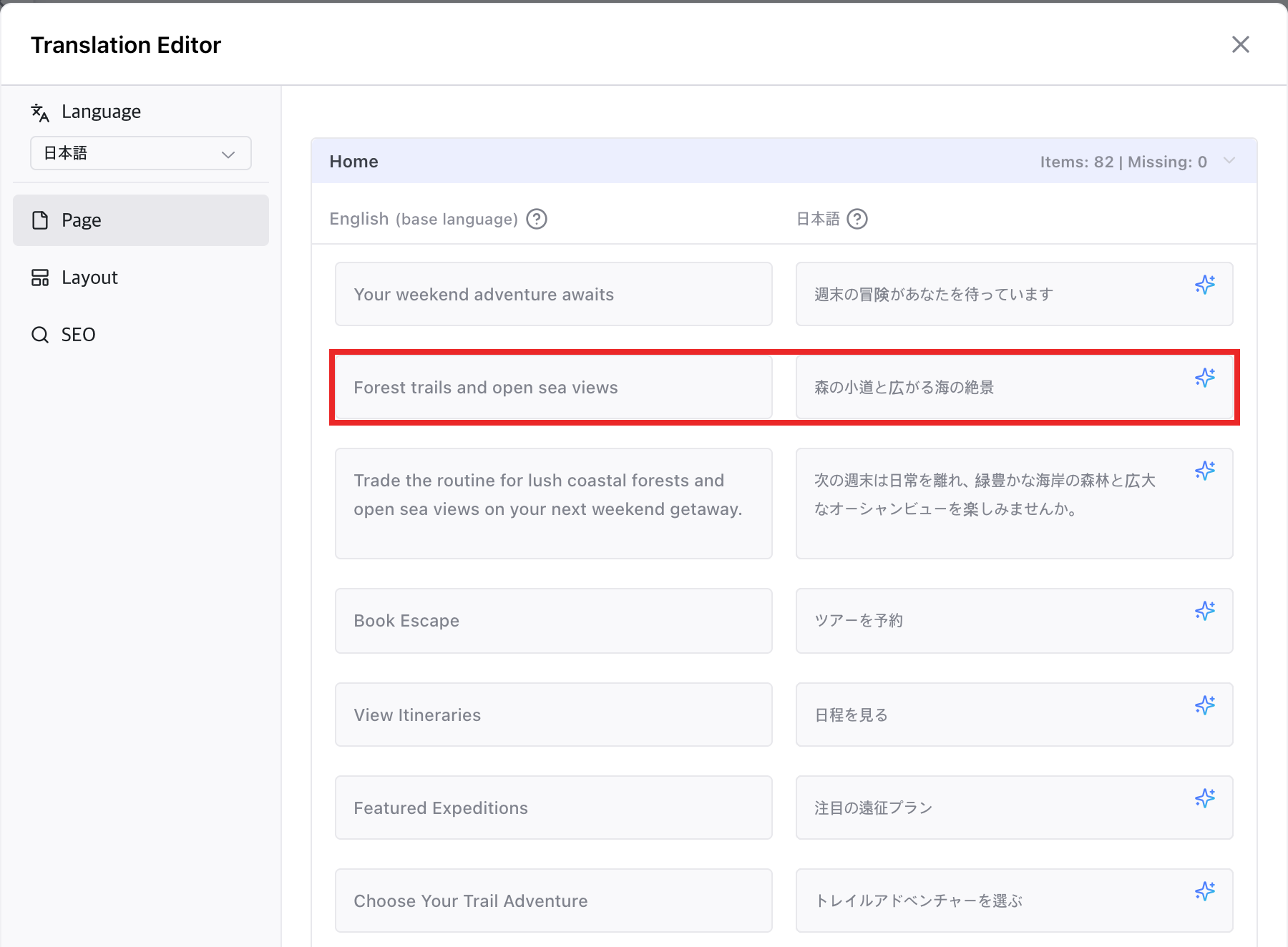
Once the translation is done, take a quick look. Check especially that brand names and menu names weren't translated in a way you didn't expect. You can edit any text directly in the [Translation Editor], or have AI translate it again.
One more tip! Polish the content in your base language before translating. AI translates from the language you originally built your website in.
This feature is available from the Growth plan and up.
In the next post, we'll show you how to connect the social media accounts you've worked hard on to your website.