How to Add an About Page to Your Website and Make It Easy to Find

Nadoo's Add Page feature lets you create an About page in a few clicks, then link it from your top menu and footer so visitors can find it.
"So, who's behind this business?"
Has a customer ever asked you that after finding your website?
Before buying from or booking with a brand they've never heard of, people want to know who's behind it. That's especially true for a brand that's just getting started. So today, let's build an About page.
If you work with a team, you can show off your teammates too.
✨ How to Create Your About Page
Click [Add Page] and a list of page layouts appears. For a page about you, choose 'About'. If you work with a team, choose 'Team' to introduce your teammates too.
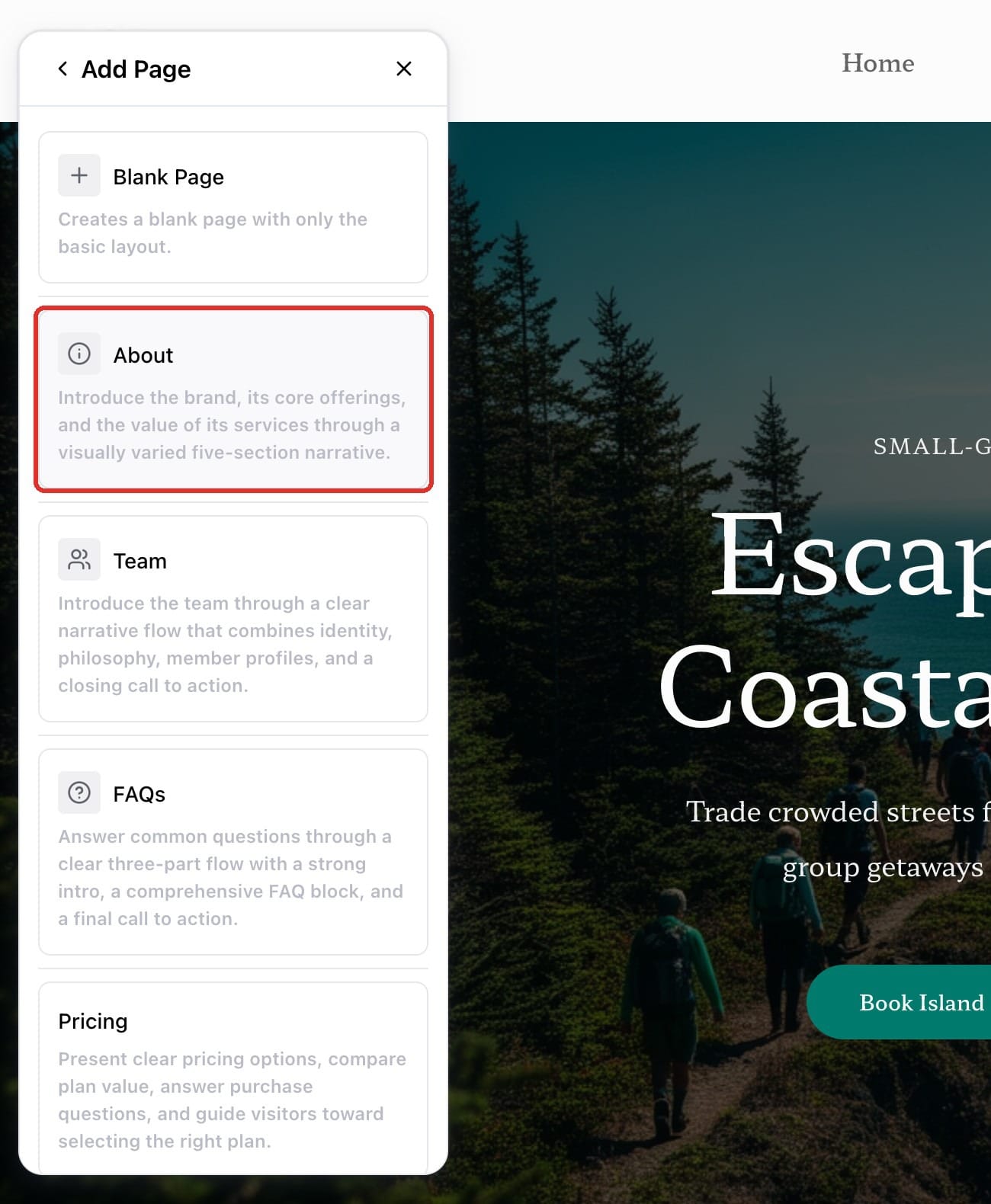
Choose 'About', then if there's a keyword you want on the page, type it into the prompt box. It's fine to leave it empty!
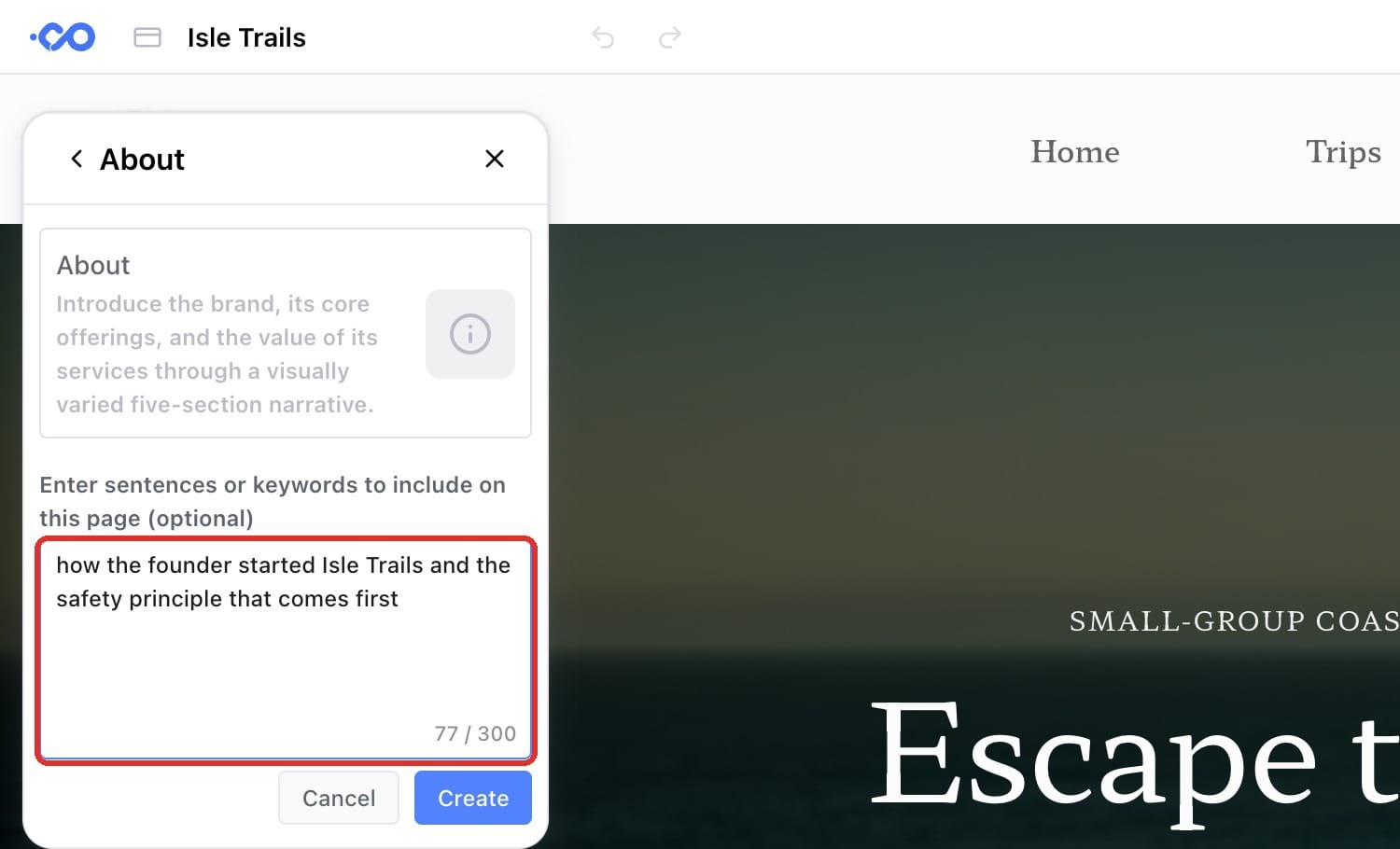
How the founder started Isle Trails and the safety principle that comes first
Click [Create] and wait a moment. Based on your current website, Nadoo fills in an About page with text and images. You know your story best, so read what AI wrote and edit it to match what's true.
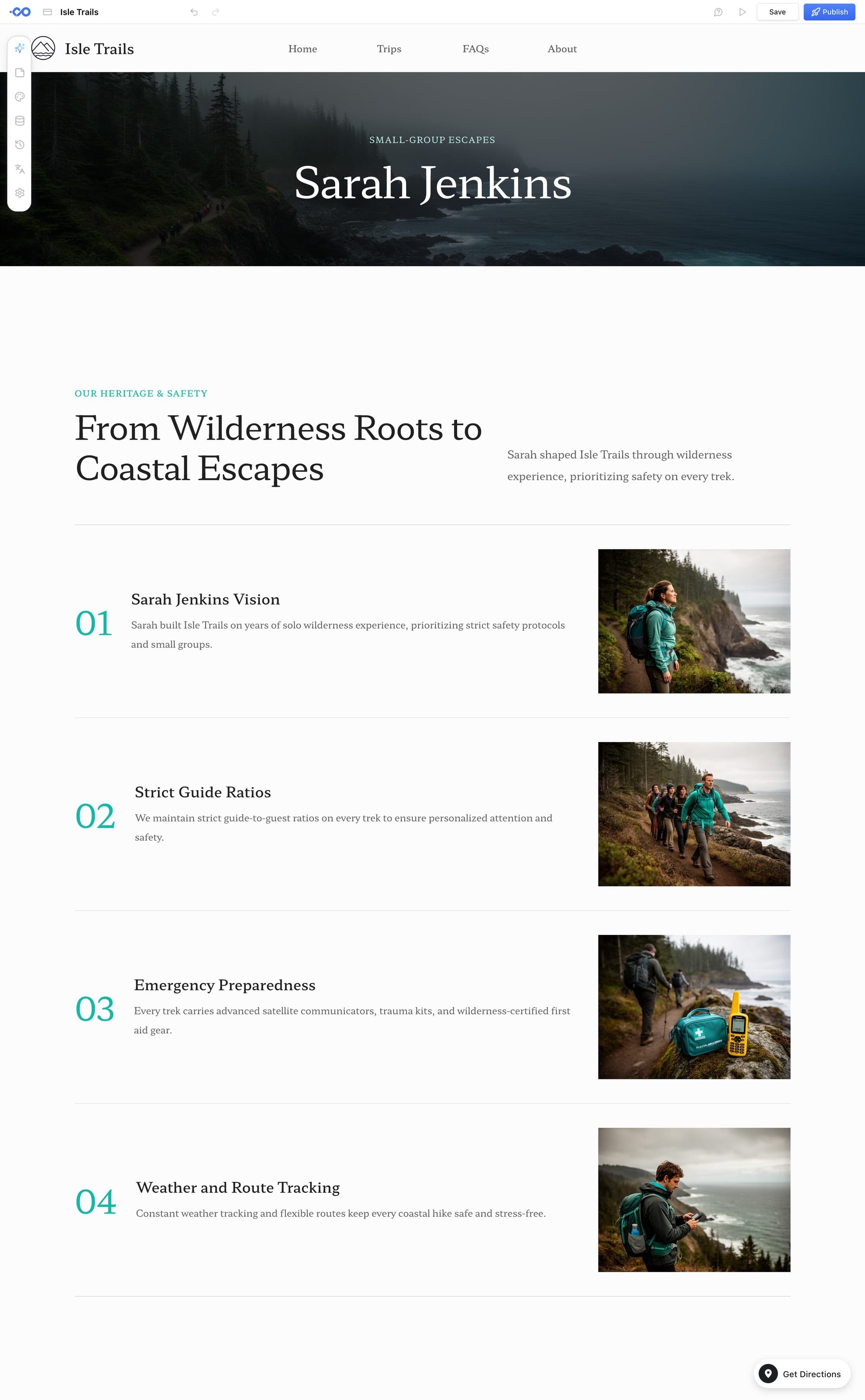
📍 Make Your About Page Easy to Find
So visitors can find your About page easily, you'll link it in two places: the top menu and the very bottom of your site.
Option 1. Add it to the top menu
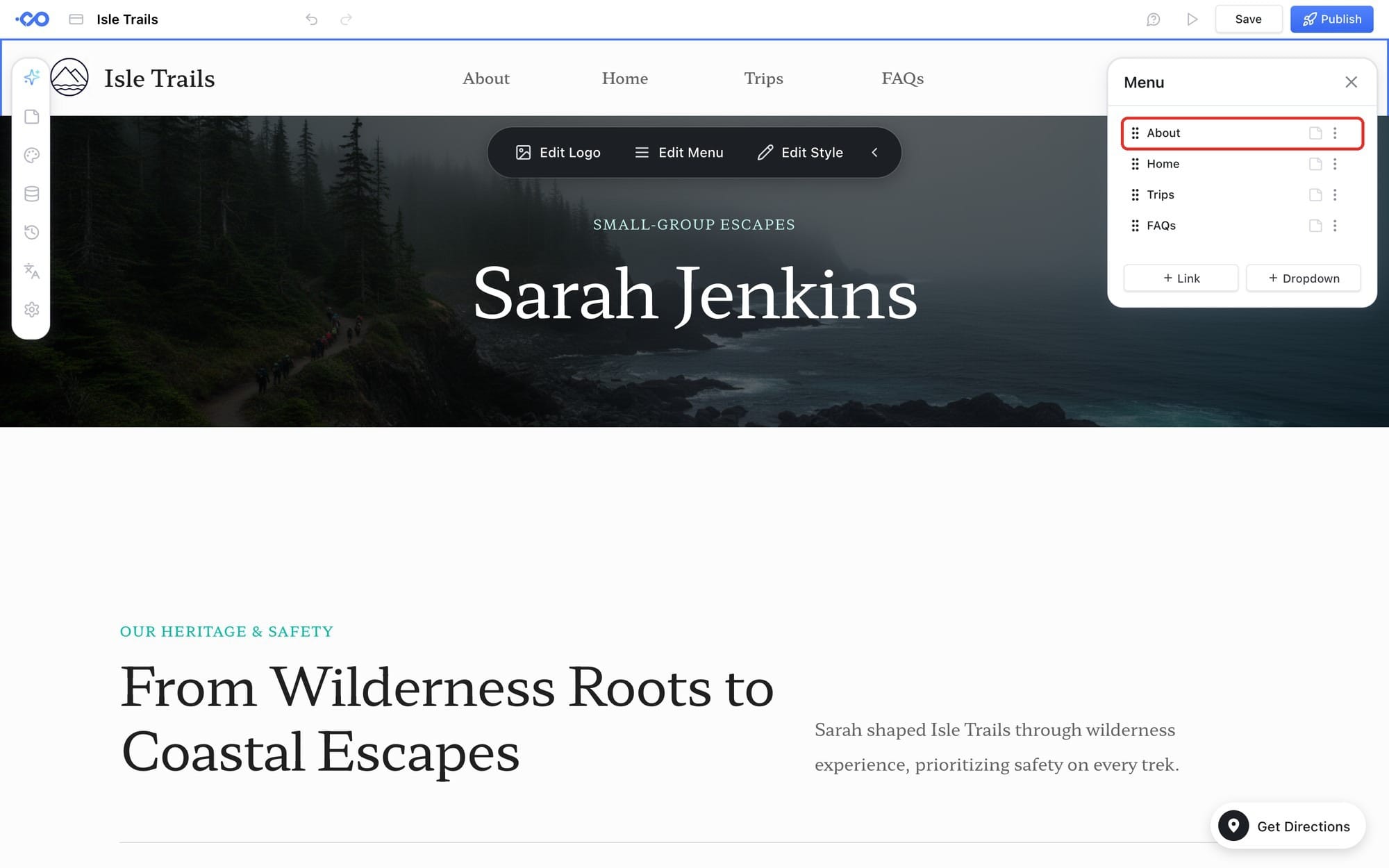
When you create a new page, a tab for it appears in your top menu automatically! To put it first, click the top menu to open [Edit Menu], then drag 'About' to the front. Visitors will see it before anything else.
Option 2. Link it from the footer too
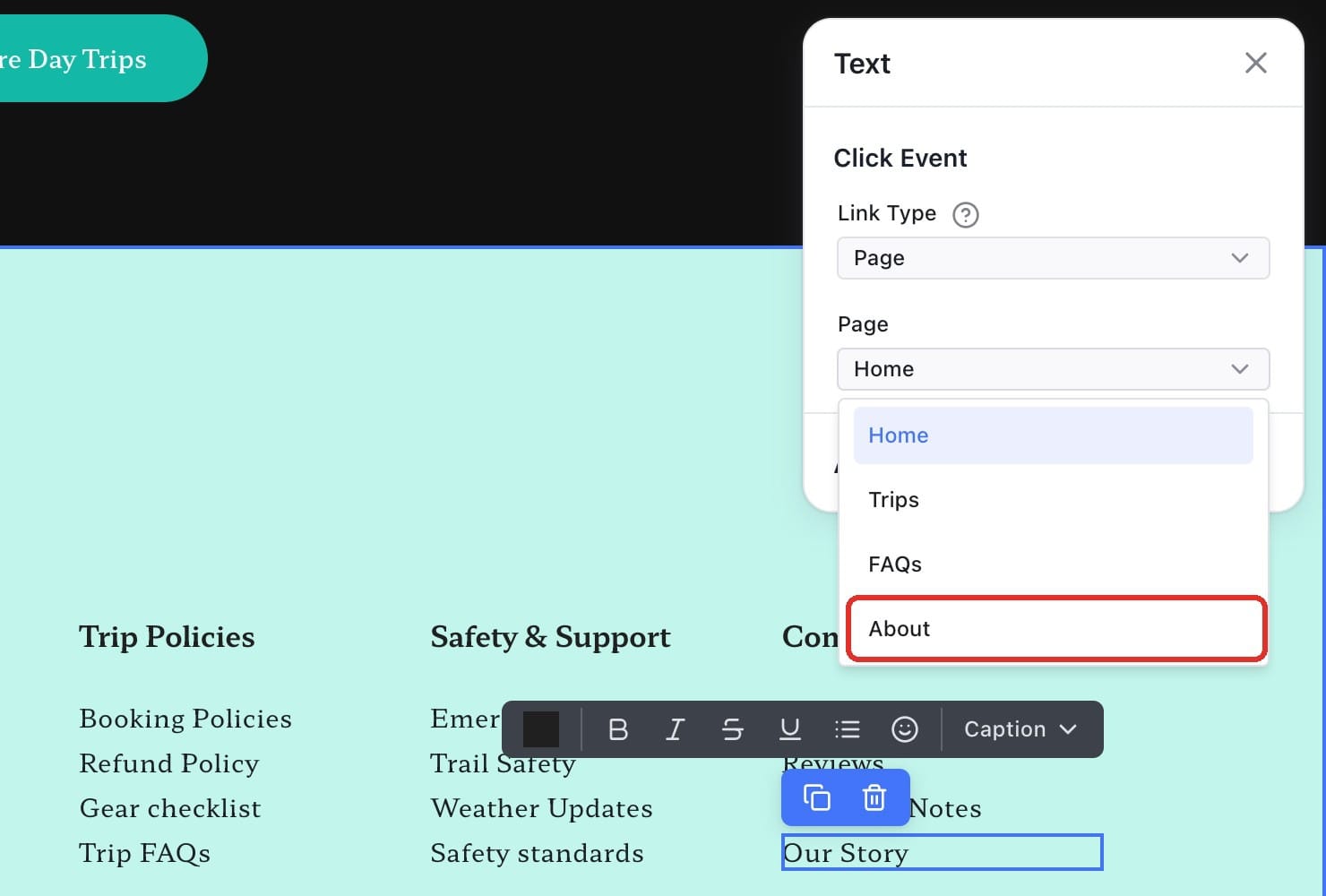
Try linking to your About page from the footer, too. Here, clicking 'Our Story' opens the About page. Click the link text, choose 'Page' under [Link Type], and select the About page you just made. That's it! When visitors scroll all the way down and wonder who's behind the site, they can click straight through.
Now when someone asks "Who runs this?", skip the long reply and send one link 😊
In the next post, we'll look at what to do when a page you worked hard on feels a little plain: how to change its design with one click.